Skip to content

WhatsApp, Messenger, Telegram

Fix WhatsApp photo quality

To improve a blurry WhatsApp photo, first ask for the camera original; that preserves more detail than any repair. If the chat copy is all you have, Enhance can reduce grain and JPEG blocks at the same size, but it cannot recover pixels discarded during sharing.

  • 3 free credits a day
  • No sign-up
  • Same size out
  • Deleted within 24 hours
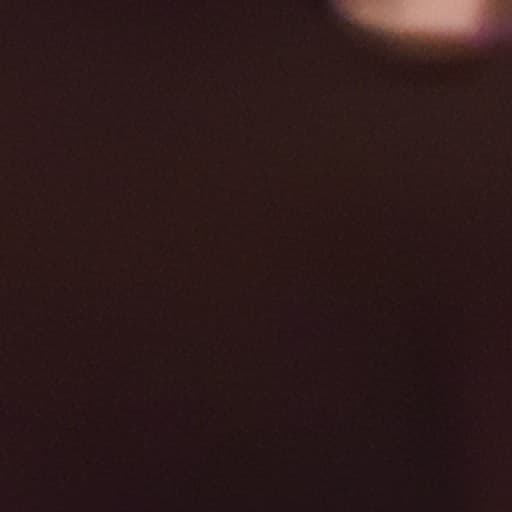
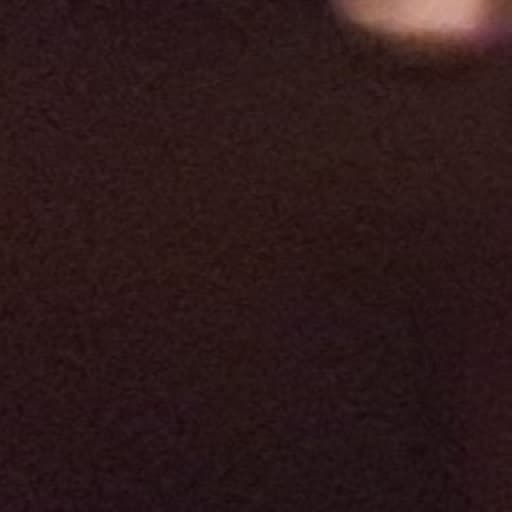
Dark fabric in a real WhatsApp photo: Enhanced
Dark fabric in a real WhatsApp photo: Chat-app copy
Chat-app copyEnhanced

Enhance · same size · crop displayed at 2×

Real WhatsApp file, not simulated compression. Left: the received image. Right: Enhance with the production TensorRT engine recipe. This 256 × 256 crop is enlarged 2× on both sides; the noisy fabric becomes smoother, not a reconstruction of its weave.

Tested settings and honest limits

We used Enhance at 1× on a real WhatsApp file, 1836 × 3264 after EXIF orientation. The displayed pair comes from the input and current-engine panels of our saved GPU benchmark. The full output is not retained locally, so this is evidence about this crop, not an assessment of the whole photo.

Look at the dark fabric: speckled colour becomes more even, but the result does not reveal the original threads. We do not know this file’s send settings, forwarding history or camera-original appearance. This test cannot tell you how much quality WhatsApp removed, or whether HD would have prevented it.

Try Enhance on the least compressed copy you have. It keeps the dimensions and may add plausible fine texture; it cannot retrieve discarded pixels. For a document or a screenshot, ask for the original file or a fresh capture, and verify every character in any processed copy.

Read how we test and where our evidence stops. These are saved engine outputs, cropped for the web without retouching.

Fix your photo

Save the photo from the chat, drop it here and choose Enhance. Each photo uses 1 credit. Free: 3 credits a day without an account, uploads up to 3 MB and 8 MP, and results carry a small watermark. Pro and Pro+ remove the watermark and accept up to 20 MB and 30 MP.

Why WhatsApp photos lose quality

Chat apps are built to deliver a photo in a second on a weak mobile connection, so they send a smaller copy, not your original file. WhatsApp's own help centre says that media is usually compressed when shared, so quality can be lower than the original. Two things happen to every photo you send with the standard quality setting.

It is made smaller. A modern phone photo is 12 to 50 megapixels. When WhatsApp added HD photos in August 2023, tests of the new option measured standard-quality photos at 1600 × 1052 pixels against up to 4096 × 2692 for HD (ChannelNews). So a standard photo keeps well under 3 megapixels of a 12-megapixel original. On a phone screen you will not notice. Zoomed in, cropped or printed, you will.

It is saved again as a lower-quality JPEG. JPEG throws away detail in 8 × 8 pixel blocks, and almost every encoder also stores colour at half the resolution of brightness (called 4:2:0 chroma subsampling). WhatsApp does not publish its exact settings, but the result is easy to recognise:

  • Blocks in smooth areas such as sky, walls and skin, especially in the dark parts of night photos.
  • Ringing: faint halos and specks around edges and text (sometimes called mosquito noise).
  • Colour smearing: strong reds and blues bleed past their edges, because colour was stored at half resolution.
  • Flat, waxy texture: hair, grass, fabric and leaves turn into smooth patches.
  • Banding: smooth gradients such as a sunset break into visible steps.

Repeated edits and re-saves can add more damage. Cropping or filtering a received JPEG and exporting it again can add compression on top of the old damage. A screenshot copies the screen display rather than the original pixels. Keep the received file as well as any edited version; forwarding alone does not tell us how many times a particular file was recompressed.

Messenger, Telegram and other chat apps

The same trade-off applies elsewhere. Facebook Messenger added an HD option in April 2024 that sends photos up to 4096 × 4096 pixels; without it, photos go out at a lower resolution (Android Authority). Telegram compresses photos sent the normal way and keeps the original only when you send the image as a file. Instagram and Facebook posts are resized and recompressed too.

Whatever the app, the damage looks the same, so the repair is the same. Enhance was trained on exactly this mix: phone noise first, then a resize and a lossy re-save on top.

What can be recovered, and what cannot

Compression removes information in two ways, and they are not equally fixable.

Artifacts can be reduced. Blocks, halos, colour bleeding and phone grain can often be cleaned without changing the broad shapes. The real WhatsApp crop above shows speckled fabric becoming smoother. It does not show recovered threads, a clean camera original or the performance of every part of the photo.

Lost resolution can only be partly rebuilt. If a face was 60 pixels wide in the copy you received, the eyelashes and pores are simply not in the file. Enhance sharpens edges that are still there and adds natural fine texture where the photo had lost it, but it does not invent a new face or guess letters that have turned into smudges. That added texture is plausible, not a record of the scene, so a person still looks like themselves, but the result is not evidence of fine detail.

The original file always beats any repair. If you can still ask the sender, ask them to resend the photo in HD, or better, as a document (see below). Use Enhance for the copies you cannot replace: a photo from an old chat, a group trip, someone who has since changed phones.

How to fix a WhatsApp photo you already received

  1. Save the best copy you have. Use the photo from the chat where it was first shared, not a screenshot or a copy that has been re-shared through other apps. On a phone, open the photo and choose Save; on WhatsApp Web or Desktop, use Download.
  2. Upload it to Enhance. Drop it into the uploader on this page. Enhance keeps the exact width and height and works on the whole frame at once: compression blocks, colour smearing, phone noise and mild softness. There are no settings to tune, and it uses 1 credit.
  3. Compare at 100%. Use the before / after slider and zoom in on faces, text and edges. If the photo looks better, download it.
  4. Need it bigger? For a print or a large screen, run the cleaned photo through Upscale 4×. A 1600 × 1200 WhatsApp photo becomes 6400 × 4800, enough for a 16 × 20 inch print at 300 pixels per inch. The print size calculator shows what your file can reach.

Enhance takes JPG, PNG and WebP. Free uploads can be up to 3 MB and 8 megapixels; a standard WhatsApp photo is well inside that. Uploads and results are deleted within 24 hours and are never used to train AI.

Printing a photo someone sent you? It works, at a modest size. A standard-quality WhatsApp photo of about 1600 × 1200 pixels prints sharply at about 5 × 4 inches as it is. Clean it with Enhance, upscale it, and check the size against the pixels you have before you order.

How to send photos on WhatsApp in better quality

Prevention is free, and it is worth telling the people who send you photos:

  • Tap HD before sending. When you attach a photo, WhatsApp shows an HD button at the top of the editor. Choose HD quality and the photo goes out much larger. WhatsApp notes that HD photos are clearer but use more data and take longer to send.
  • Make HD the default. In Settings, open Storage and data, then Media upload quality, and choose HD quality. Use Wi-Fi when you send many photos at once.
  • Send as a document for the original. HD is still compressed. Attach the photo through Document instead of Gallery or Photos, and the file arrives exactly as it was taken. The recipient sees a file rather than a preview, but nothing is lost. Use this for photos that will be printed or edited.
  • Don't screenshot photos to share them. Forward or save the photo itself; a screenshot is a smaller, re-compressed copy.
  • For albums, use a shared link. Google Photos, iCloud shared albums and similar services keep full-resolution files and avoid chat compression altogether.

Profile pictures and Status updates

Profile pictures are shown as small, heavily compressed squares, so a blurry profile photo usually means the upload was small, or it was cropped from a larger shot so that the face covers only a small part. Upload a photo where the face fills most of the square, and if your only copy is small or blocky, clean it with Enhance first, then crop.

Status photos and videos are compressed like normal photos. If yours look soft, check that HD is on when you post and that the photo is not a screenshot of another photo.

Which photos Enhance helps, and which it leaves alone

Enhance is intended for indoor and evening photos with grain, colour blotches and compression damage. The crop above is one real received file, not a representative test of all sharing histories. Try your own least compressed copy and check the whole result.

A bright daylight photo sent in HD often arrives in good shape. If your copy already looks clean when you zoom in, Enhance leaves it essentially as it is. It does not add detail the photo does not need, so there is little point spending a credit on it.

Text and numbers. Enhance detects text in the photo and leaves it to the restoration step, which removes noise and compression but does not redraw letters. Very small or dense print can occasionally be missed. Enhance will not make unreadable text readable, and it is not the tool for documents, receipts or licence plates where every character matters. For a screenshot or a scanned page, ask for the original file or a fresh capture; it is always better than a repaired copy.

How we made the examples

This page now uses a real received WhatsApp photo. Both panels are taken from a saved benchmark sheet: its input panel and the output of the current production-engine recipe, rather than the reference or error-map panels. The crop was matched exactly to the EXIF-oriented source. The full result is not retained locally, so we limit the claim to the crop shown.

You can see more results, including night shots and upscales, in the gallery.

What Enhance will not do

  • It cannot bring back detail that was never in the file, such as tiny faces or text that has turned into a smudge. It leaves those areas clean rather than inventing new ones.
  • It does not fix strong camera shake or a missed focus from before the photo was sent.
  • It does not beautify faces, change expressions or remove objects.
  • It does not make unreadable text readable. Text is protected, not reconstructed, and very small print can occasionally be missed, so it is not a tool for documents where every character matters.
  • It is not for forensic or evidential use: the fine texture it adds is plausible, not a record of the scene.
  • It does not repair scratches, tears or stains on photos of old prints.
  • It keeps the same size. To make a photo bigger, use Upscale 4× after Enhance.
  • Free results are watermarked; paid plans are not.

Questions

Why are photos blurry on WhatsApp?

Standard-quality sharing can resize and compress a photo, removing fine detail and adding blocks or colour smearing. Historical tests when HD launched measured about 1600 pixels on the long side for a standard copy; that is not a universal current limit. Our real crop does not establish how many times that file was compressed.

Can I restore the original quality of a WhatsApp photo?

Not exactly: detail that was discarded is gone. You can remove most of the compression damage (blocks, halos, colour bleeding, grain) with Enhance, which makes the photo look much closer to the original. For the true original, ask the sender to resend it as a document.

Is WhatsApp HD the original photo?

No. HD photos are much larger than standard ones (tests at launch measured up to 4096 × 2692 pixels) but they are still compressed. Sending the photo as a document keeps the original file.

How do I make WhatsApp send HD photos by default?

Open Settings, then Storage and data, then Media upload quality, and choose HD quality.

Does this comparison show the original camera detail?

No. It shows a real received WhatsApp photo before and after Enhance. We do not have the matching camera original, so smoother fabric is not proof of recovered weave.