





Skip to content

Enhance phone photos

Removes grain, colour blotches and chat-app compression from phone photos in one pass. The photo keeps its size, its colours and its composition.

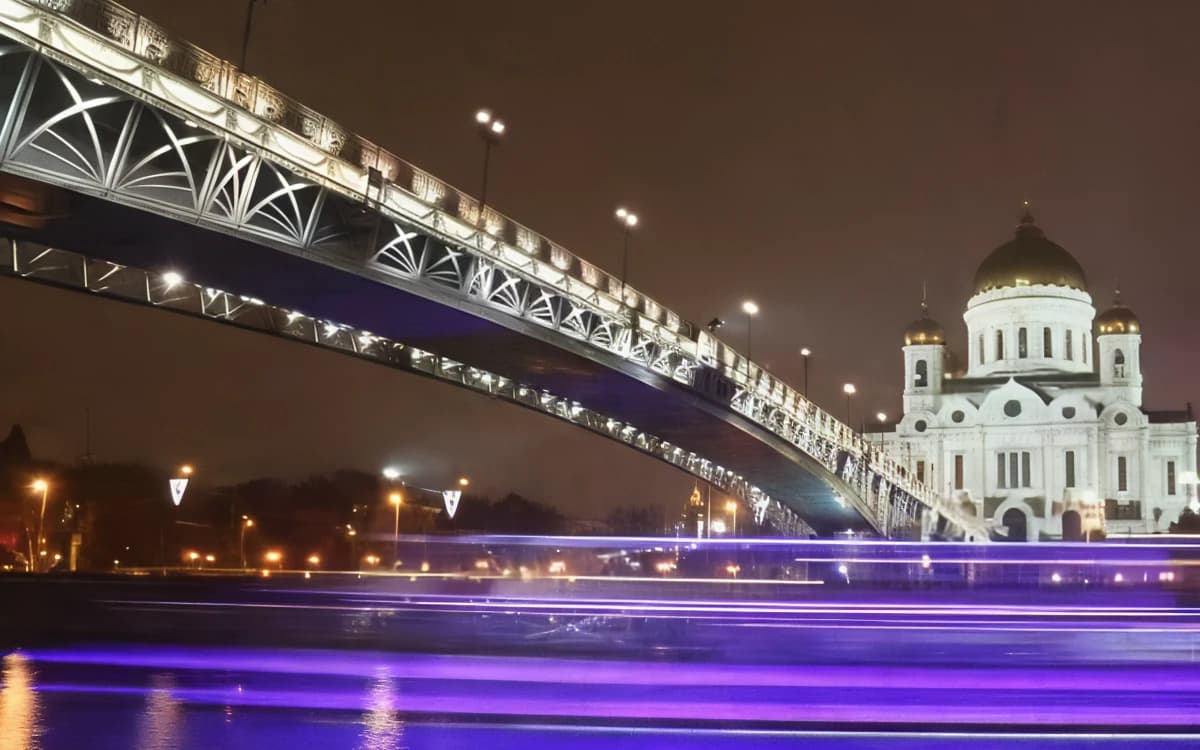
Cathedral by the river: After
Cathedral by the river: Before
BeforeAfter

Enhance · simulated phone photo · 1600×1067 · close-up

Night shots without the grain.

A phone in the dark records grain and colour blotches, smears what is left, and a chat app adds blocky compression on top. Enhance separates that damage from the real picture, so lamps, railings and rooftops come back clean.

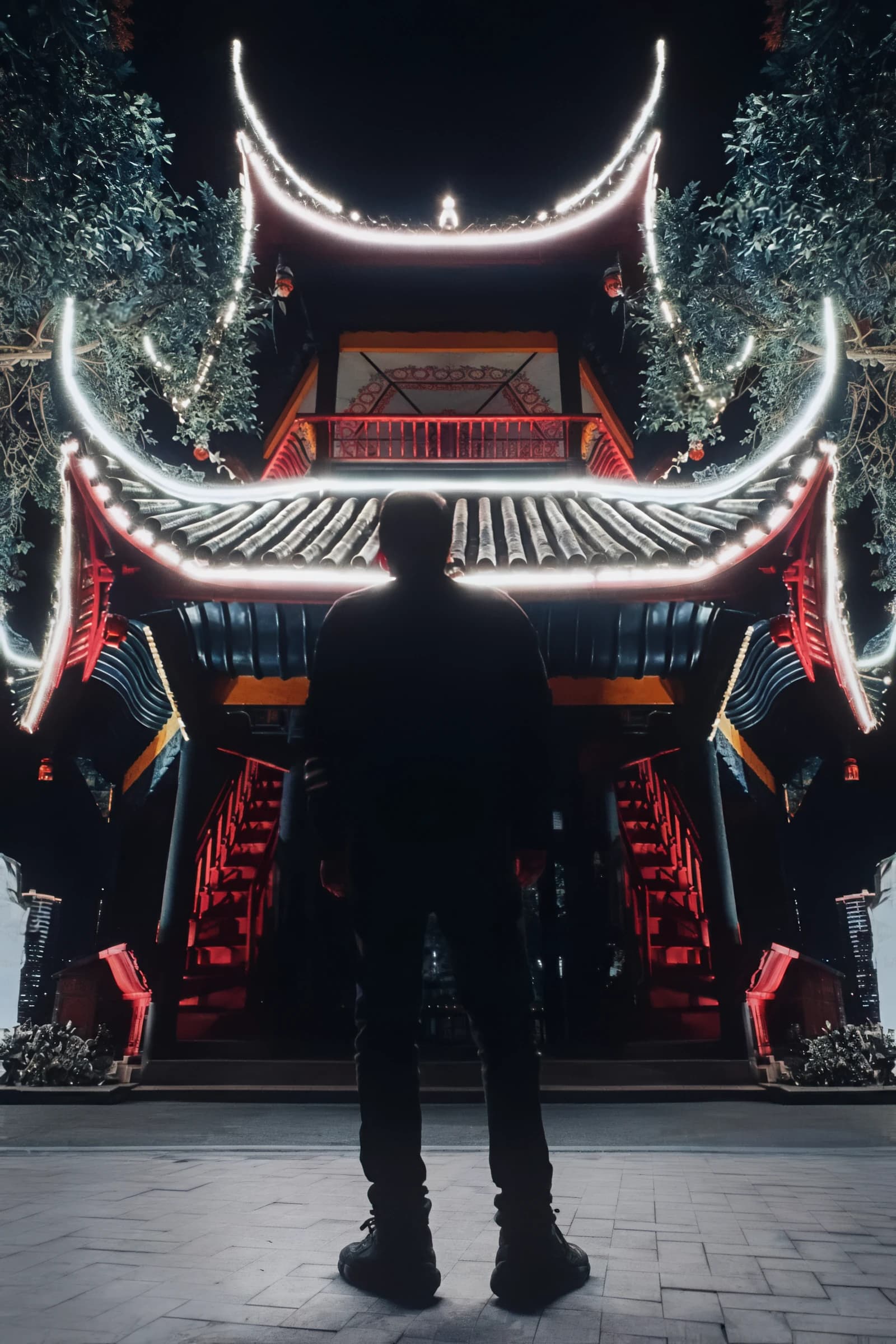
Red pagoda at night: After
Red pagoda at night: Before
BeforeAfter

Enhance · simulated phone photo · 1600×2400 · close-up

Texture instead of wax.

A simple denoise filter smooths knitwear, foliage and hair into a waxy surface. Enhance removes the noise and adds back natural fine texture where the photo had lost it.

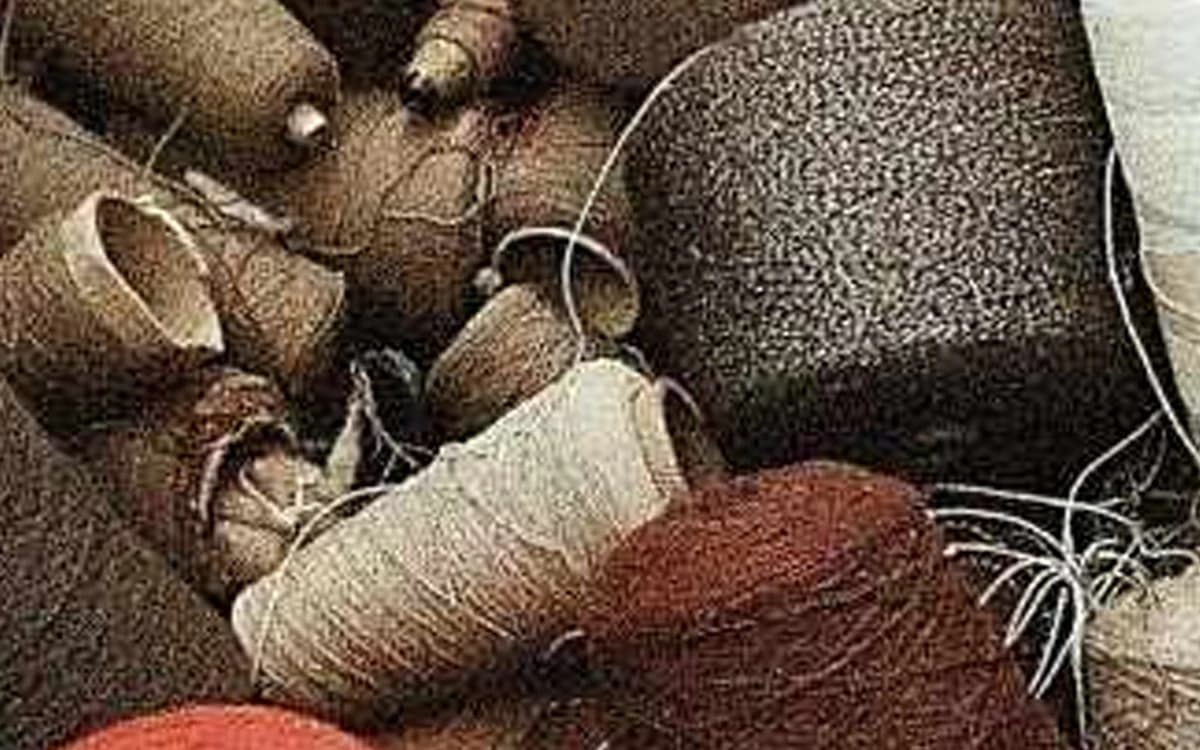
Yarn spools, indoors: After
Yarn spools, indoors: Before
BeforeAfter

Enhance · simulated phone photo · 1600×2684 · close-up

The same colours, the same scene.

Terracotta, leaves and skies keep their colour. Enhance repairs damage; it does not relight, restyle or recompose your photo.

Plant shelf, indoors: After
Plant shelf, indoors: Before
BeforeAfter

Enhance · simulated phone photo · 1600×1279 · close-up

How Enhance works, and when to use it

What goes wrong in a phone photo, what Enhance does about it, and how to get the cleanest result.

What goes wrong in a phone photo

A phone sensor is tiny. In good light that hardly matters. Indoors and at night the camera raises its sensitivity (ISO) to get a usable exposure, and the sensor's random noise is amplified with the picture. You see it as grain, and in the shadows as blotches of red, green and purple that are not part of the scene.

The phone then tries to hide that noise. Its built-in noise reduction blurs fine texture together with the grain. That is why night photos often look smeared or painted: hair turns into a smooth mass, foliage into green watercolour, brick into flat orange. Night modes that merge several frames help, but they can add smearing and ghosting when anything moves.

The last step usually happens when the photo is shared. WhatsApp, Messenger and most social apps shrink the picture and save it again as a compressed JPEG. Compression throws away the fine detail that was left and adds square blocks and halos around edges. Each forward can add another round. Our page on fixing WhatsApp photo quality explains this step in detail, and why night photos are grainy covers the camera side.

What Enhance does to the photo

Enhance runs two neural networks in a row. The first is a restoration model. It removes sensor noise, colour blotches, smearing from phone noise reduction and JPEG compression in one pass, and keeps real edges where they were. The second is a detail model. Where noise or compression wiped out fine texture, such as the weave of fabric or the needles of a pine tree, it adds natural texture back so the result does not look plastic.

The detail model only works where the photo needs it. If your photo is already clean, Enhance leaves it essentially as it is; it does not invent detail that is not needed. Text it detects in the photo, such as signs and labels, is left to the restoration step, which removes noise and compression but does not redraw letters.

Both networks were trained on pairs of a clean photograph and the same photograph passed through a simulation of real phones. The simulation was calibrated on measurements of real devices: noise from budget and older phones, night-mode merging, and the resize-and-compress rules of messaging apps. That is why Enhance recognises phone damage that a generic denoise filter treats as detail.

The output has exactly the same width and height as your upload. Enhance does not enlarge, crop or relight the photo, and it does not change white balance or exposure: a warm night scene stays warm. If you also need a bigger picture, run Upscale 4× on the enhanced result.

Which photos benefit most

Enhance makes the biggest difference when the damage is noise or compression, not missing focus:

  • Photos taken in low light, at night or indoors that came out grainy, smudgy or soft: city lights, restaurants, concerts, birthday parties.
  • Pictures that lost quality after being sent through WhatsApp or another chat app, or saved many times, where the original is gone.
  • Photos from older or budget phones, whose small sensors are noisy even indoors.
  • Product and listing photos taken in a dim shop or garage, before they go online.

What Enhance is not for

Enhance repairs the picture; it does not read it. It will not make unreadable text readable, recover a licence plate or sharpen a document. Very small or dense print can occasionally be missed by the text detection, so for documents where every character matters, check the result or keep the original.

The fine texture it adds is plausible, not a record of the scene. Do not use the results as evidence or for identification, for example of faces, plates or serial numbers. And an already sharp, well-exposed photo will barely change: Enhance is a repair tool, not a filter that makes every photo look different.

Enhance was built for photographs. On screenshots and graphics it also removes compression blocks, but flat areas can pick up faint texture, so compare the result with the original.

Tips for the best result

The model can only work with what is in the file, so a better input gives a better output:

  • Use the least-forwarded copy you can find. The photo in the sender's camera roll beats one forwarded three times.
  • Avoid screenshots of photos. A screenshot adds a resize and interface scaling on top of the original damage.
  • Upload the photo before you edit it. Filters, heavy sharpening and brightness boosts make noise harder to separate from detail.
  • Enhance first, then upscale. Enlarging a noisy photo enlarges the noise, and noise is harder to remove once it is spread over more pixels.
  • Check faces and any text at 100 % zoom before you print or publish.

Repair, not a redraw

Many AI enhancers are fully generative: they redraw skin, eyes and texture from scratch. That can look impressive at a glance and wrong on a closer look, especially on a person you know. Enhance is tuned to repair what the pixels support. It does not beautify faces, change expressions or add objects. Where information is truly gone, it leaves the area clean and natural instead of inventing it. Our guide to faithful and generative upscaling explains the difference.

Every example on this page and in the gallery is a real output of the model. The damaged inputs were made with our phone simulator from clean photos, and each example says so.

How to use Enhance

  1. 1

    Upload the photo

    Drop a JPG, PNG or WebP into the uploader below, or anywhere on the page. Use the original file if you have it.

  2. 2

    Enhance it

    The photo is processed on our GPU servers. There are no sliders to tune: the model reads the damage from the picture itself.

  3. 3

    Compare and download

    Drag the slider, zoom in to 100 %, then download the result at the same size as your upload.

Ways to clean up a noisy phone photo

Ways to clean up a noisy phone photo
EnhanceDenoise filter in an editorGenerative AI enhancer
Noise and colour blotchesRemovedReduced, texture smearedRemoved
Chat-app JPEG blocksRemovedUsually notRemoved
Fine textureAdded back where it was lostLostOften redrawn
FacesNot reshapedUnchangedOften reshaped
Photo sizeSame as the originalSameOften changed

More from Enhance

See the gallery
  • Village church at night, processed with EnhanceVillage church at night
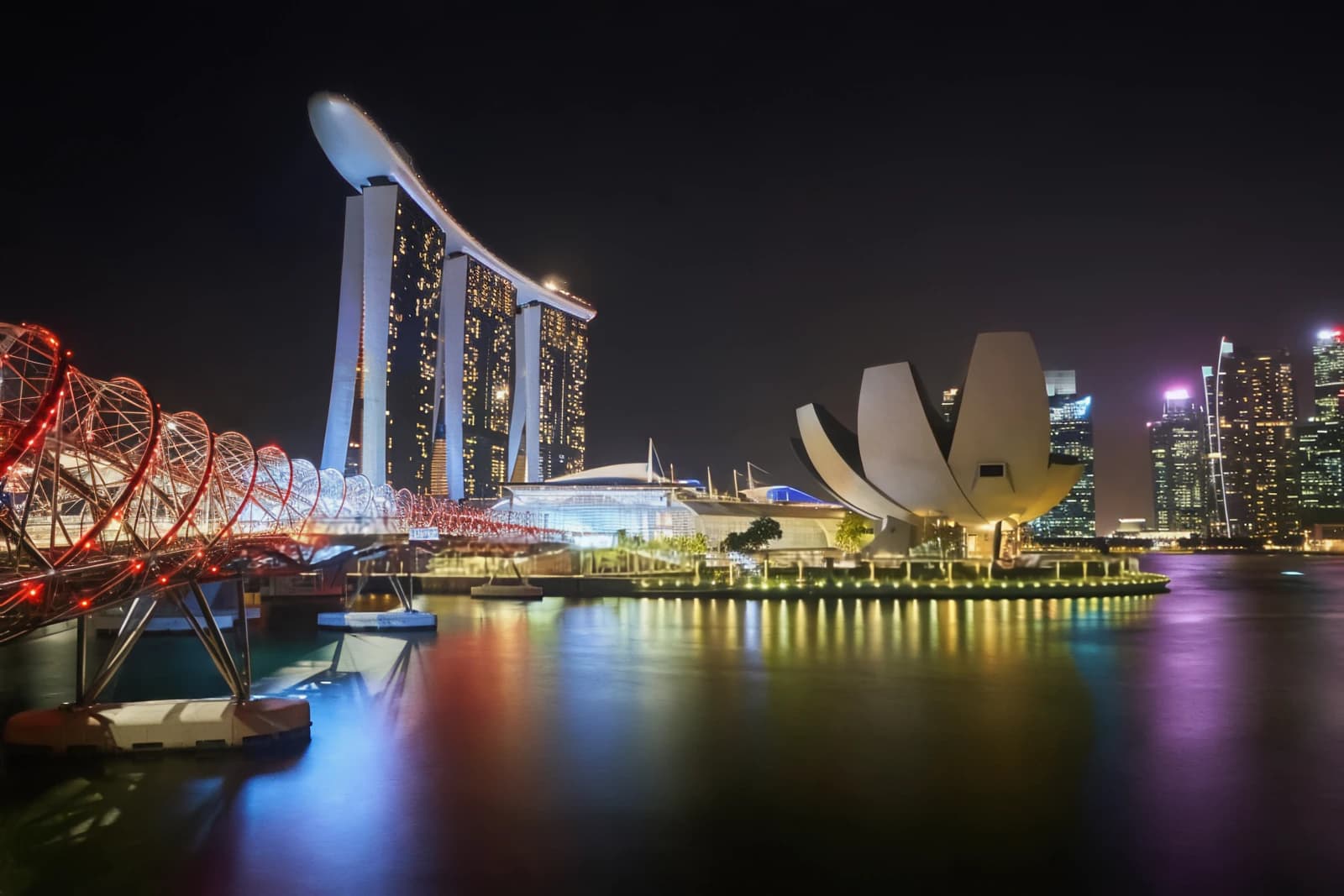
  • Marina Bay after dark, processed with EnhanceMarina Bay after dark
  • Red pagoda at night, processed with EnhanceRed pagoda at night
  • Cathedral by the river, processed with EnhanceCathedral by the river
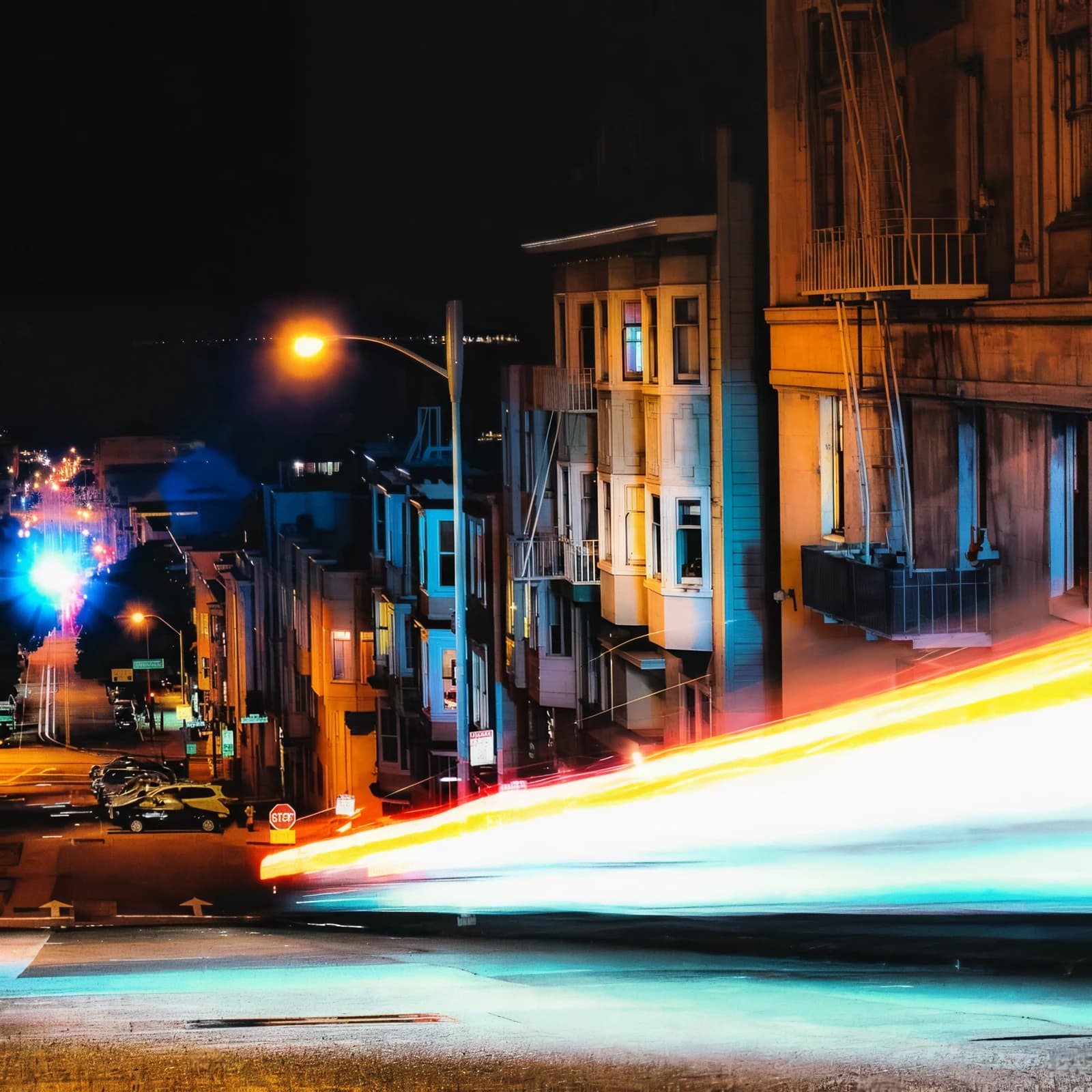
  • Light trails on a hill street, processed with EnhanceLight trails on a hill street
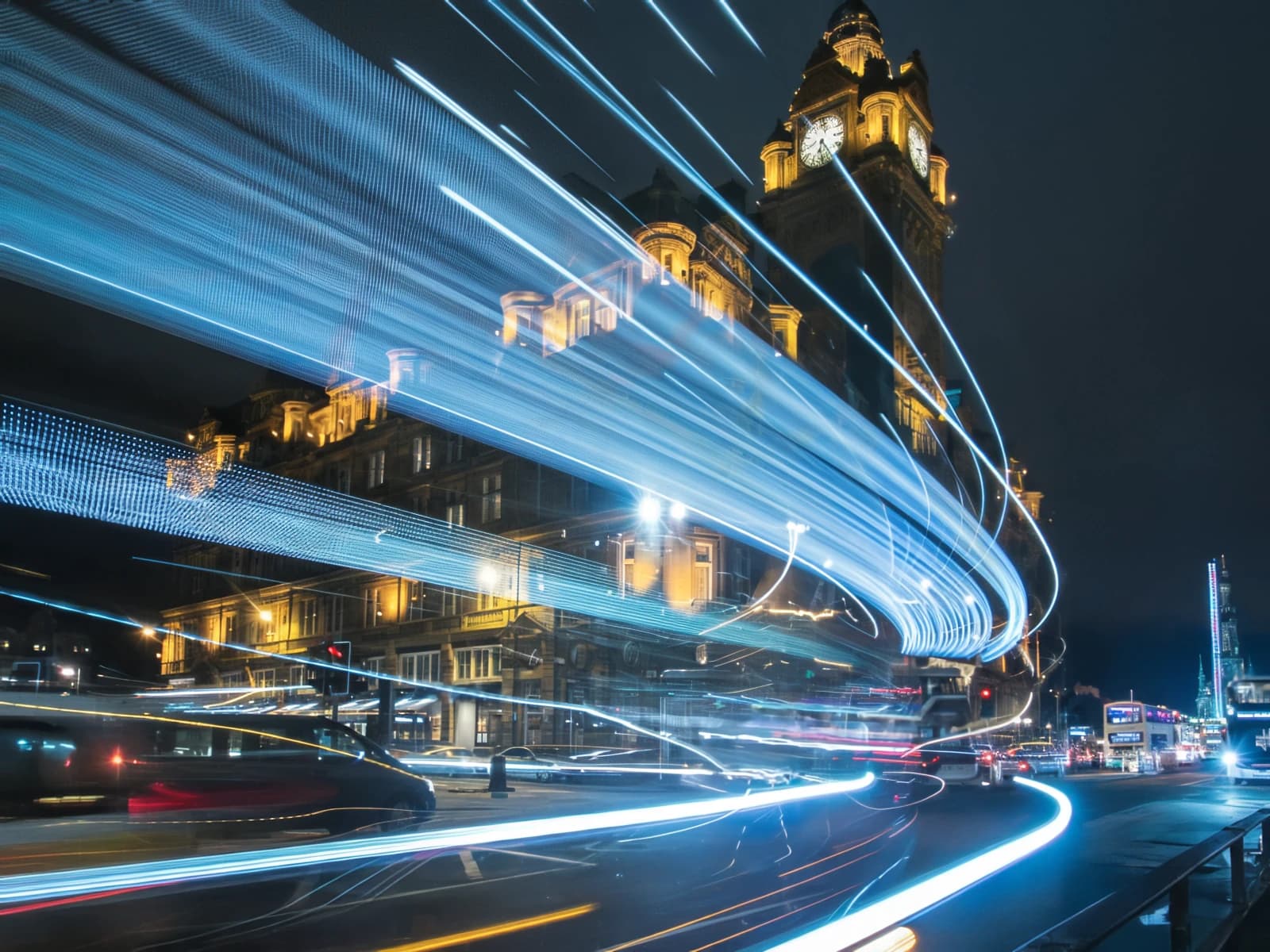
  • Clock tower and light trails, processed with EnhanceClock tower and light trails
  • Yarn spools, indoors, processed with EnhanceYarn spools, indoors
  • Knit hat in the snow, processed with EnhanceKnit hat in the snow

Specs

Output size
Same as the original
Fixes
Noise, colour blotches, JPEG blocks, smearing
Cost
1 credit per photo
Formats
JPG, PNG, WebP
Free plan
3 credits a day, up to 3 MB and 8 MP
Paid plans
Up to 20 MB and 30 MP, no watermark
Privacy
Deleted within 24 hours

What it won't do

  • It does not fix strong motion blur or a subject that is far out of focus.
  • It does not make unreadable text readable, and it is not for documents or licence plates.
  • Added texture is plausible, not a record of the scene: not for evidence or identification.
  • It does not repair scratches, tears or stains on scanned prints, and it does not colourise.
  • It does not change faces, expressions or composition.
  • It does not make the photo bigger. Use Upscale 4× or 8× for that.

Guides for specific jobs

Questions

Will it make my photo look fake?

No. Enhance removes noise and compression and keeps the scene as it was. It does not beautify faces or add objects. The fine texture it adds back follows the shapes and colours in your photo.

What if my photo is already good?

Then very little happens. If a photo is already clean, Enhance leaves it essentially as it is. It is a repair tool, so it helps most on visibly grainy or compressed photos.

Does it change the size of my photo?

No, the result has exactly the same width and height. To make a photo larger, run Upscale 4× or 8× after enhancing it.

Can it fix a photo someone sent me on WhatsApp?

Yes. That is one of the main things it was trained for: it removes the compression blocks and smearing a chat app adds. It cannot bring back detail that was too small to survive the app's resize, so use the least-forwarded copy you can get.

Will Enhance change my text or numbers?

Enhance detects text and leaves it to the restoration step, which only removes noise and compression and does not redraw letters. Very small or dense print can occasionally be missed, so for documents where every character matters, check the result or use the original.

How is this different from the noise reduction in my phone or editor?

A classic denoise filter blurs noise and texture together. Enhance was trained to tell them apart, so it removes the grain and blotches and adds back fine texture where it was lost.

Can it fix a blurry photo?

It fixes softness caused by noise reduction and compression. It does not fix strong motion blur or a photo that is badly out of focus.

Is it free?

The free plan gives you 3 credits a day with no sign-up and no card. Enhance and Upscale 4× use 1 credit per photo, Upscale 8× uses 2. Free results carry a watermark. Free uploads can be up to 3 MB and 8 MP. Paid plans remove the watermark and accept up to 20 MB and 30 MP.

What happens to my photos?

Uploads and results are deleted automatically within 24 hours. They are never sold and never used to train AI.

Processing photos in bulk or inside your own app? Use the image enhancement and upscaling API

Other models