Skip to content

Upscale images 4× with AI

Four times wider and four times taller. Clean edges and natural texture where a normal resize gives you blur.

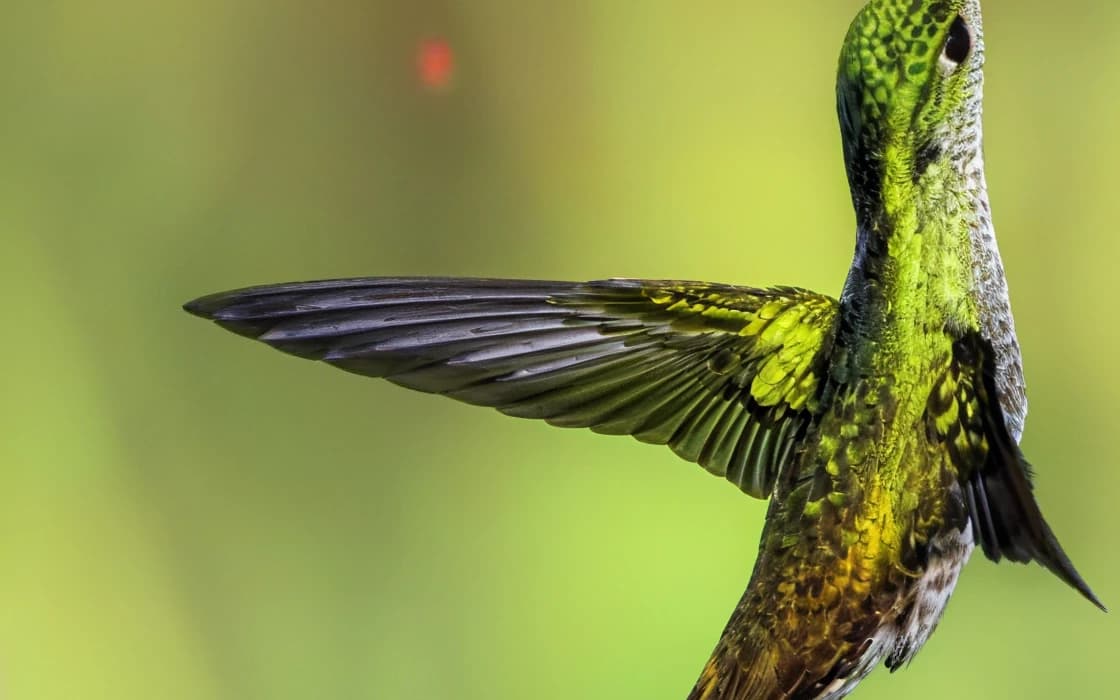
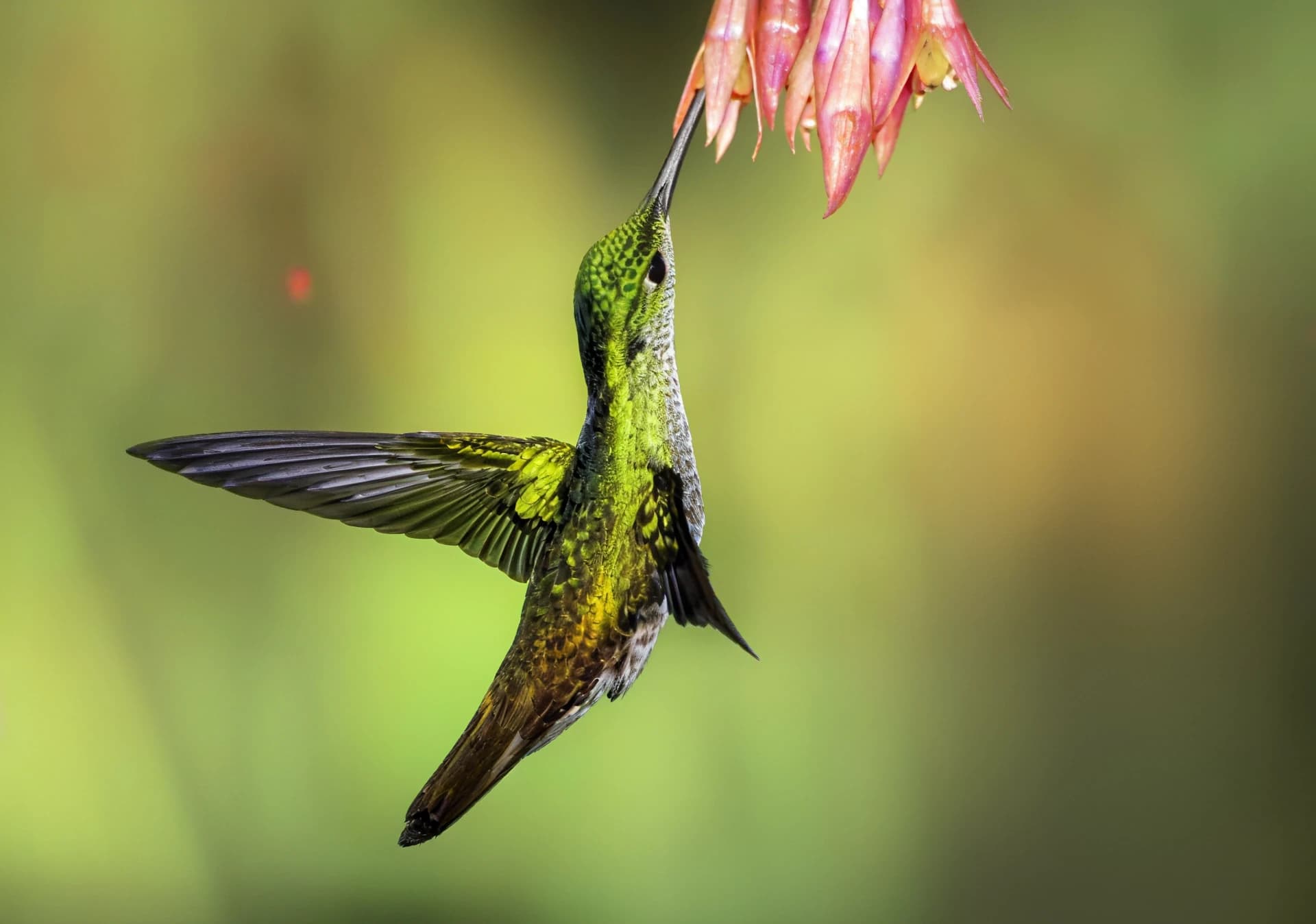
Hummingbird at a flower: After
Hummingbird at a flower: Before
BeforeAfter

Upscale 4× · 480×337 → 1920×1348 · close-up

Small images, big screens.

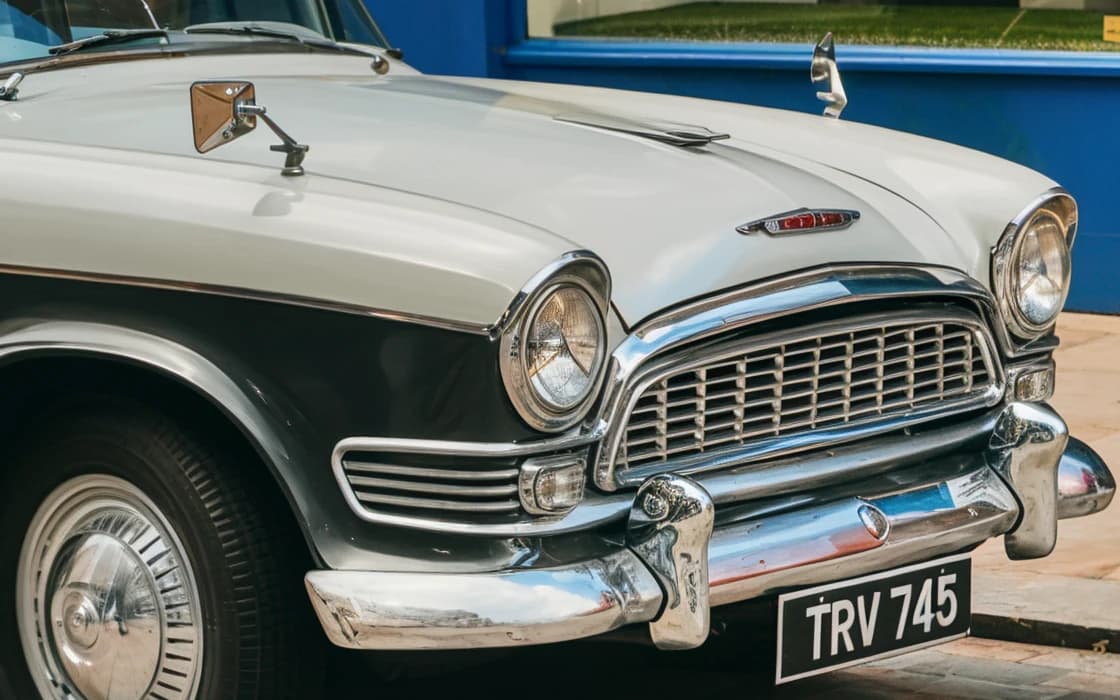
A 600-pixel photo becomes 2400 pixels wide, with crisp lines on chrome, brick and paint instead of a soft smudge.

Vintage car on cobbles: After
Vintage car on cobbles: Before
BeforeAfter

Upscale 4× · 600×400 → 2400×1600 · close-up

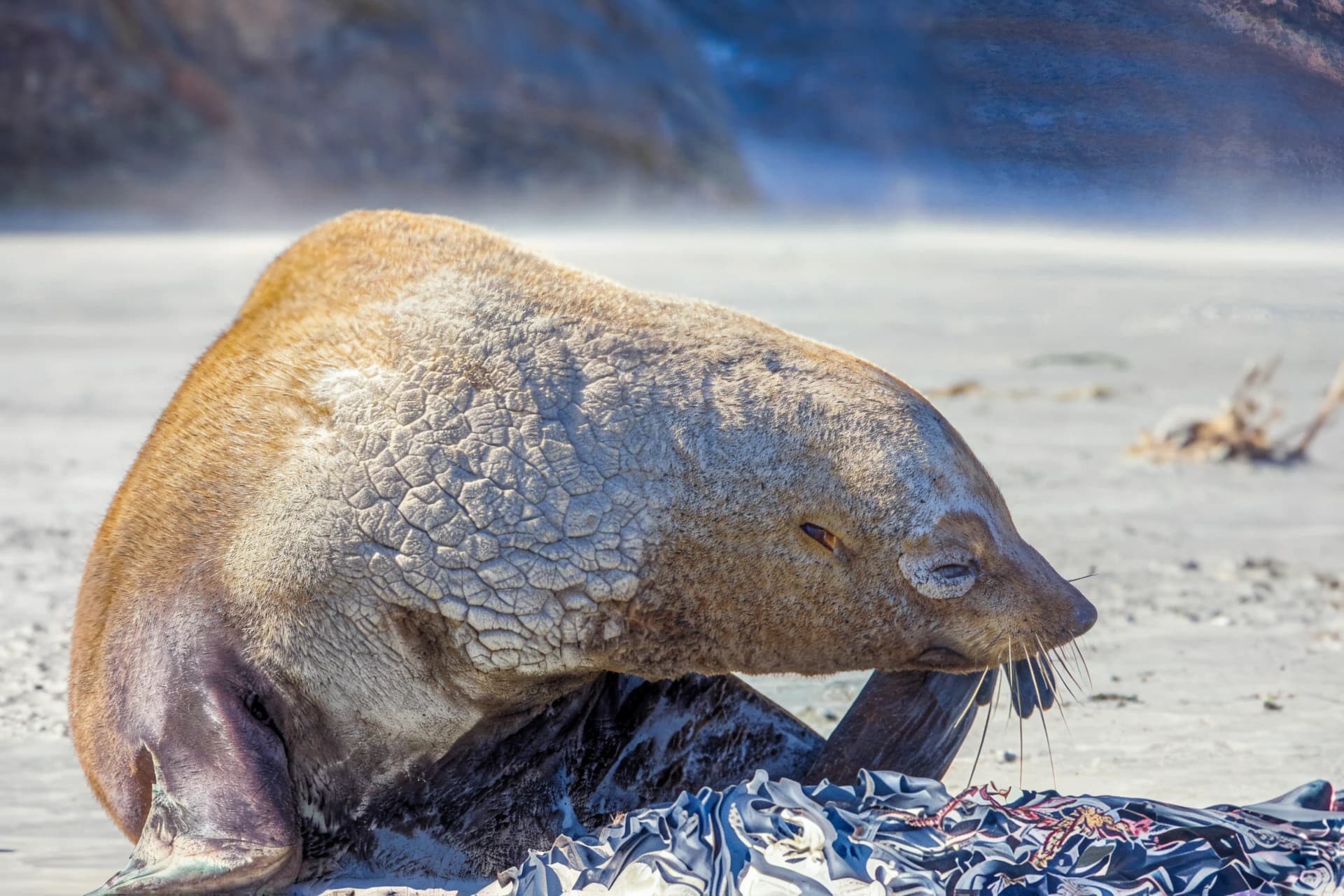
Texture, not smudges.

Fur, grass and water get believable fine structure, so the enlargement holds up when you look closely.

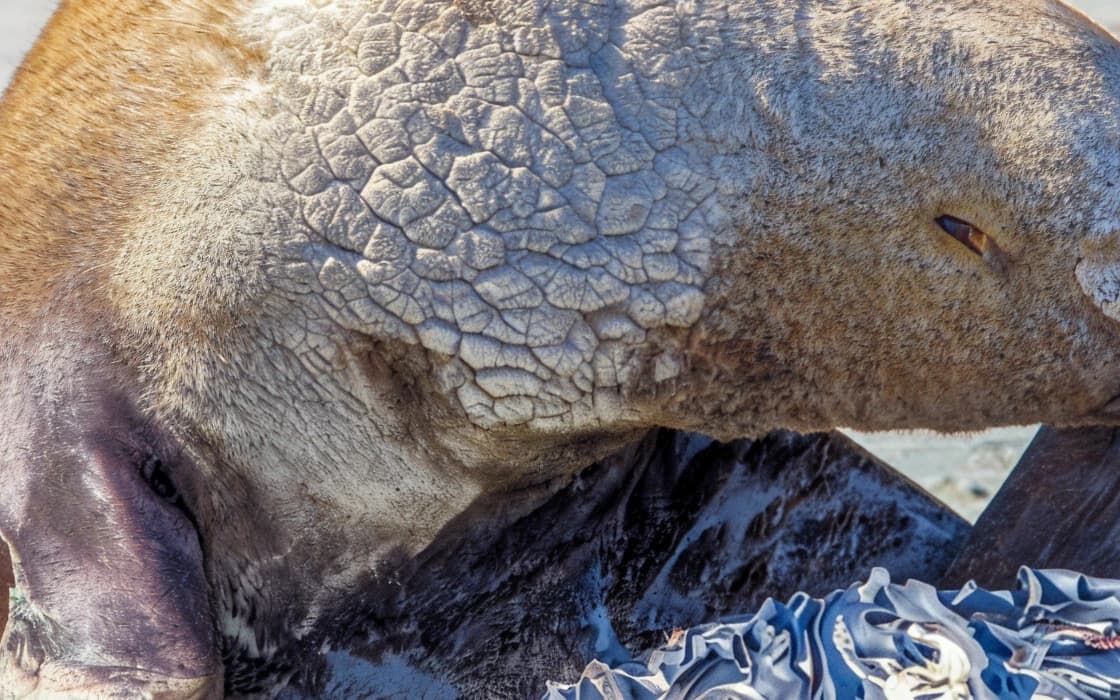
Seal on the ice: After
Seal on the ice: Before
BeforeAfter

Upscale 4× · 480×320 → 1920×1280 · close-up

Ready for print and product pages.

Sixteen times the pixels lets a web image fill a printed page or a zoomable product gallery.

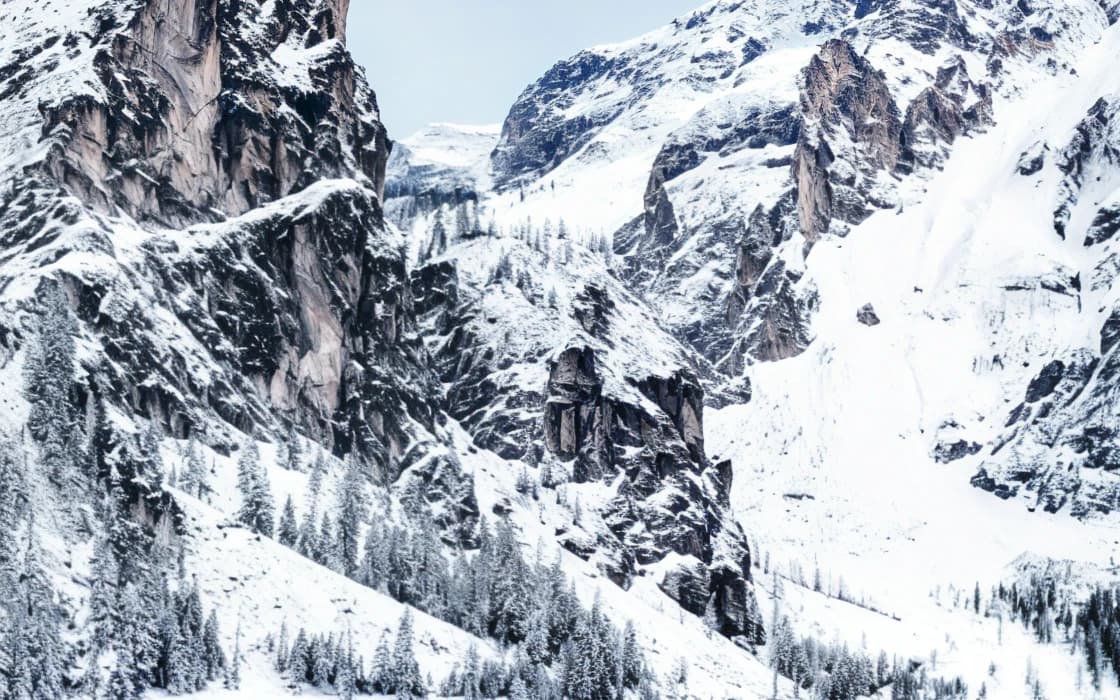
Cabin on a mountain lake: After
Cabin on a mountain lake: Before
BeforeAfter

Upscale 4× · 600×400 → 2400×1600 · close-up

How AI upscaling works, and how big you can go

What happens when a photo is enlarged four times, and how to get a result that holds up on screen and in print.

Why so many images end up too small

Most low-resolution images were not taken that way. A website served a reduced copy so it would load faster. A chat app shrank the photo before sending it. Someone cropped a distant face out of a group shot, or the only copy left came from an old phone or an old social media album.

Once those pixels are gone, a normal resize cannot bring them back. Bicubic or bilinear resizing, the kind built into every editor, spreads the existing pixels over a larger area and blends between them. The image gets bigger and evenly soft, and any blockiness in the original grows with it.
What Upscale 4× does

Upscale 4× is a super-resolution network followed by a detail model. The first network predicts the four-times-larger image that best fits your pixels. Where the small image clearly contains an edge, the result gets a clean, continuous edge instead of a staircase. The second model adds the fine texture a sharp photo has at that size, such as fur, foliage, stone and fabric, guided by the colours and shapes that are really there.

Both were trained on pairs of a high-resolution photograph and a small, realistically damaged copy, including the compression and light noise small images usually carry. So the model copes with a little JPEG damage while it enlarges. For a photo that is very noisy or heavily compressed, run Enhance first and upscale the clean result.

It is made for photos of nature, people, places and objects. Small text in the photo stays as soft as in the original: the model protects text it detects and does not guess letters, but small, dense print can still come out wrong. For documents and screenshots, upscaling is not the right fix.

Input and output sizes

Width and height are multiplied by four, so the number of pixels grows sixteen times. A 1000 × 750 image becomes 4000 × 3000 (12 MP).

The output is limited to 80 MP, so Upscale 4× accepts images up to 5 MP, for example 2560 × 1920. The free plan accepts files up to 3 MB; paid plans up to 20 MB. A photo larger than 5 MP often has enough pixels already: check your target size, or crop it before upscaling.

4× or 8×?

Use 4× for most jobs: product photos for zoom, images for slides and screens, and prints up to roughly A3 from an original of about 1 MP. It changes the picture the least and is the safer choice for faces and products. Use Upscale 8× when the original is a thumbnail of a few hundred pixels, or when you need a poster from a small landscape or architecture photo. 8× uses 2 credits per photo.

Tips for the best result

The quality of the result depends more on the input than on anything else:

  • Start from the largest, least-compressed copy you can find. The original from a camera roll beats a version saved from a chat.
  • Clean heavy noise or compression first with Enhance, then upscale.
  • Crop after upscaling, not before, if you only need part of the picture.
  • Check faces, small text and fine patterns at 100 % zoom before you print or publish.
  • Save the result as PNG or a high-quality JPEG so you do not add new compression on export.

How to use Upscale 4×

  1. 1

    Upload the image

    Drop a JPG, PNG or WebP of up to 5 MP into the uploader below, or anywhere on the page.

  2. 2

    Upscale it 4×

    The image is processed on our GPU servers. There are no settings to tune.

  3. 3

    Compare and download

    Check edges and faces at 100 %, then download the full-size result.

Ways to make an image four times bigger

Ways to make an image four times bigger
Upscale 4×Normal resize (bicubic)Generative upscaler
EdgesClean and continuousSoft, stair-steppedClean
Fine textureRebuilt to follow the photoNone, evenly blurredOften invented
FacesNot reshapedKept, but softCan be redrawn
Small textStays as soft as the originalSoftCan be redrawn as wrong letters
Light compressionCleaned while enlargingEnlarged with the imageVaries

More from Upscale 4×

See the gallery
  • Hummingbird at a flower, processed with Upscale 4×Hummingbird at a flower
  • Seal on the ice, processed with Upscale 4×Seal on the ice
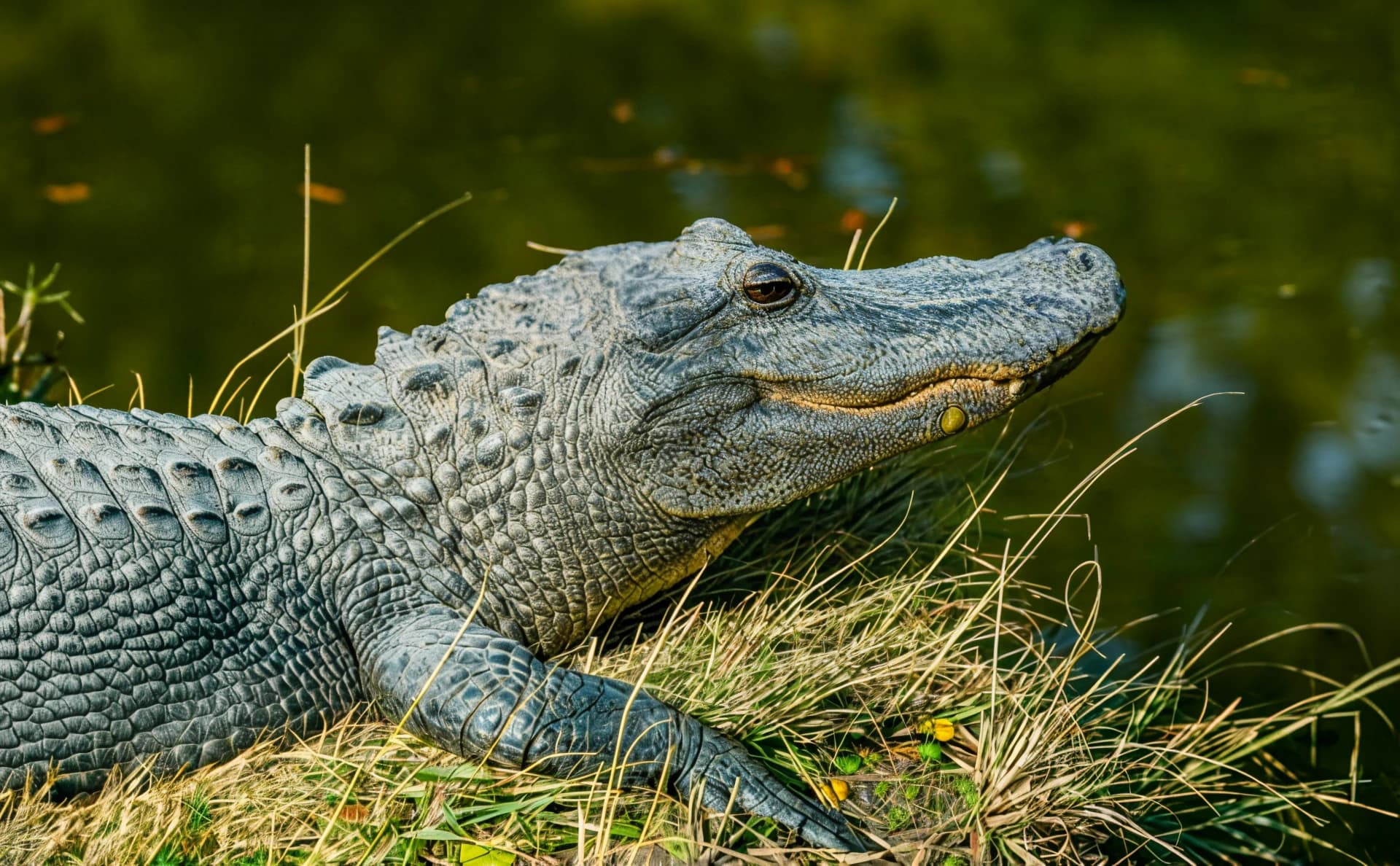
  • Alligator in the grass, processed with Upscale 4×Alligator in the grass
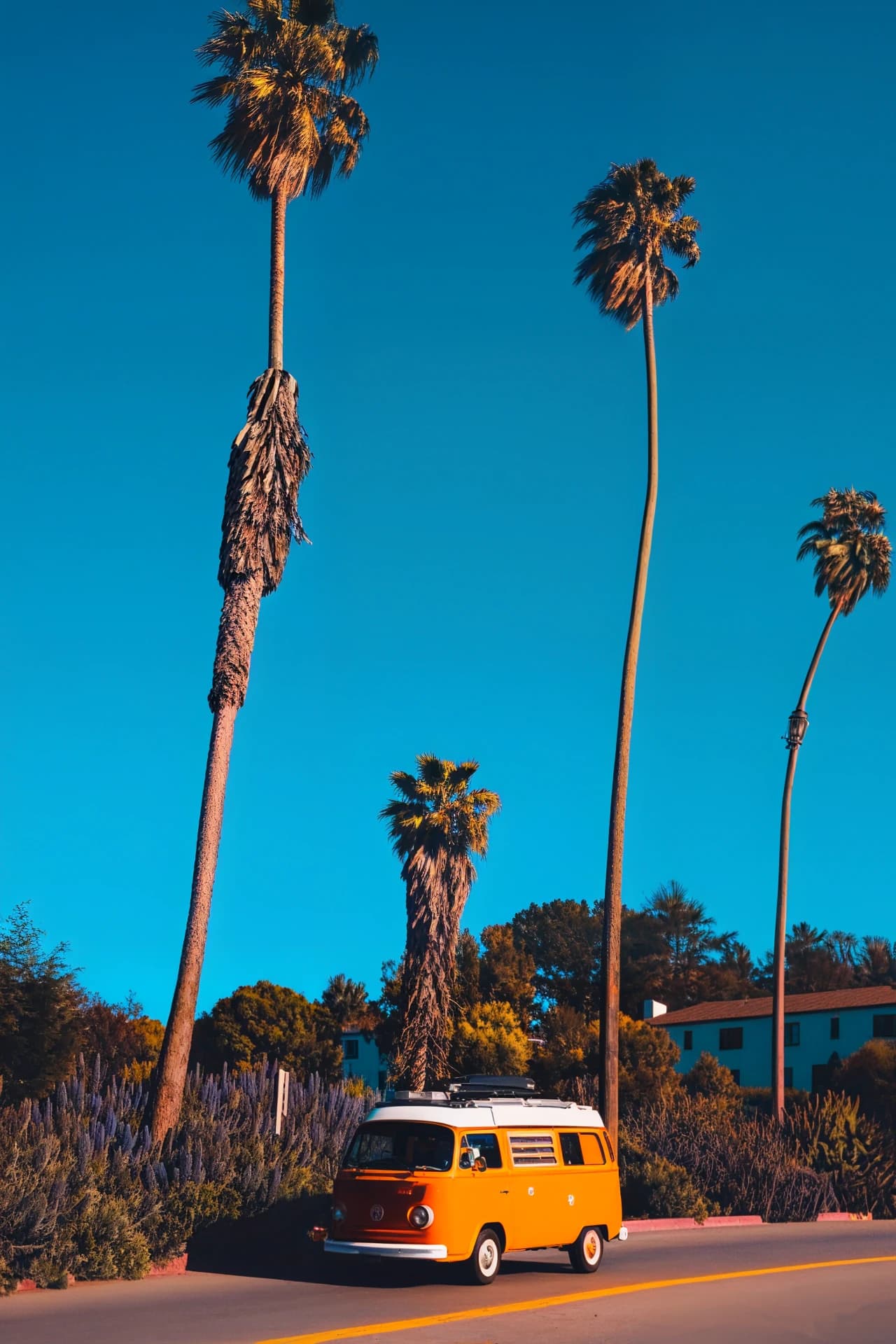
  • Palms against the sky, processed with Upscale 4×Palms against the sky
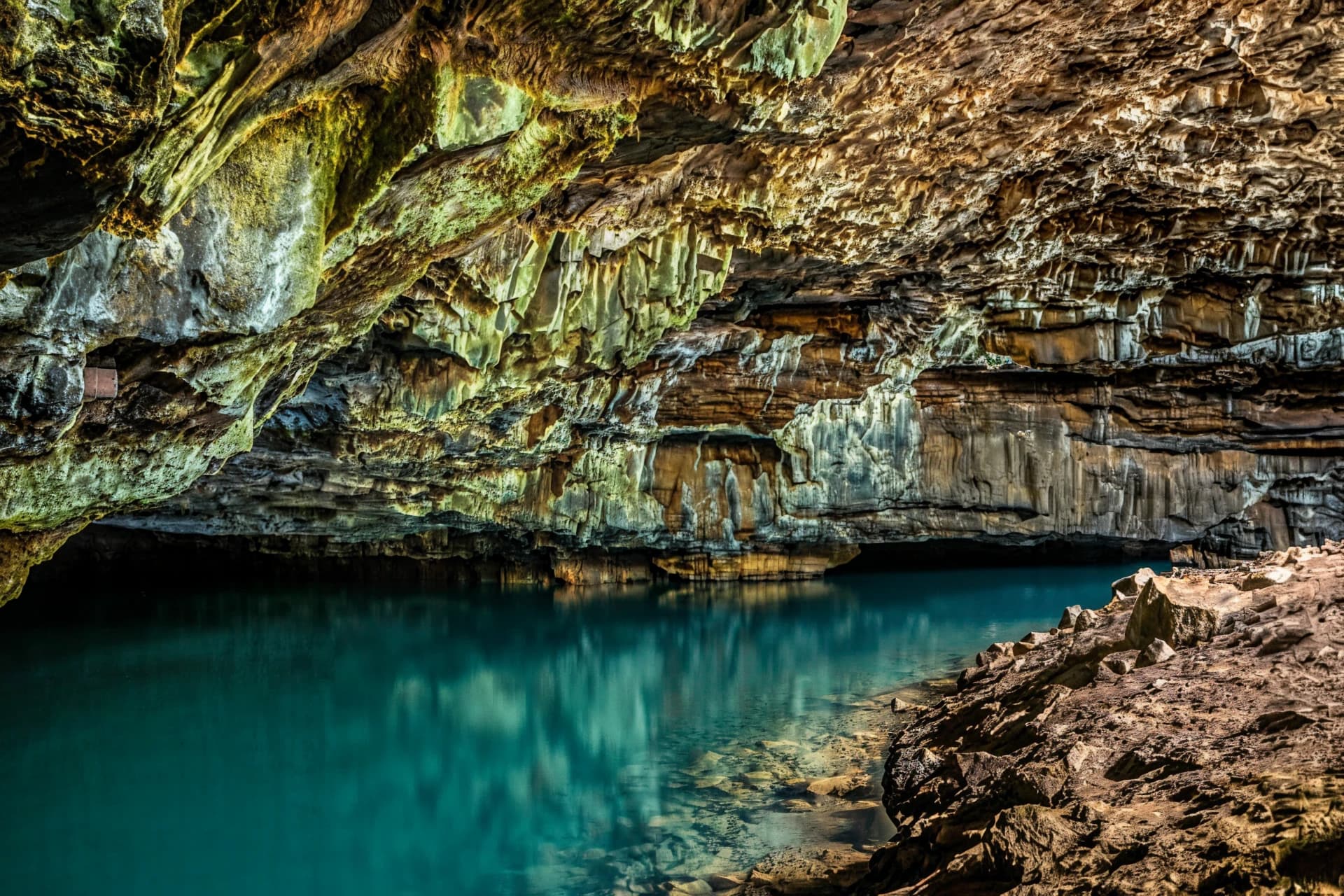
  • Cave lake, processed with Upscale 4×Cave lake
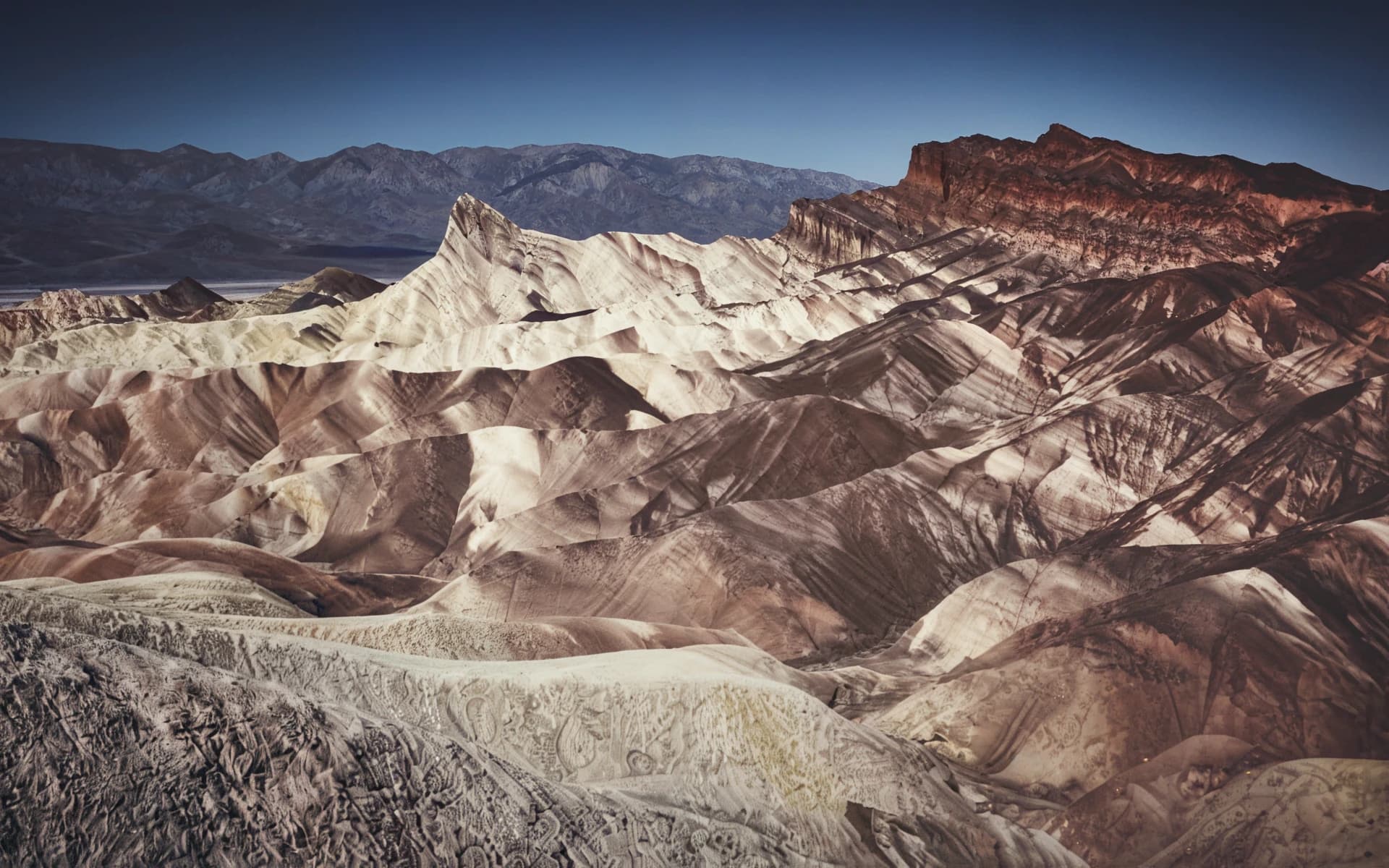
  • Badlands ridges, processed with Upscale 4×Badlands ridges
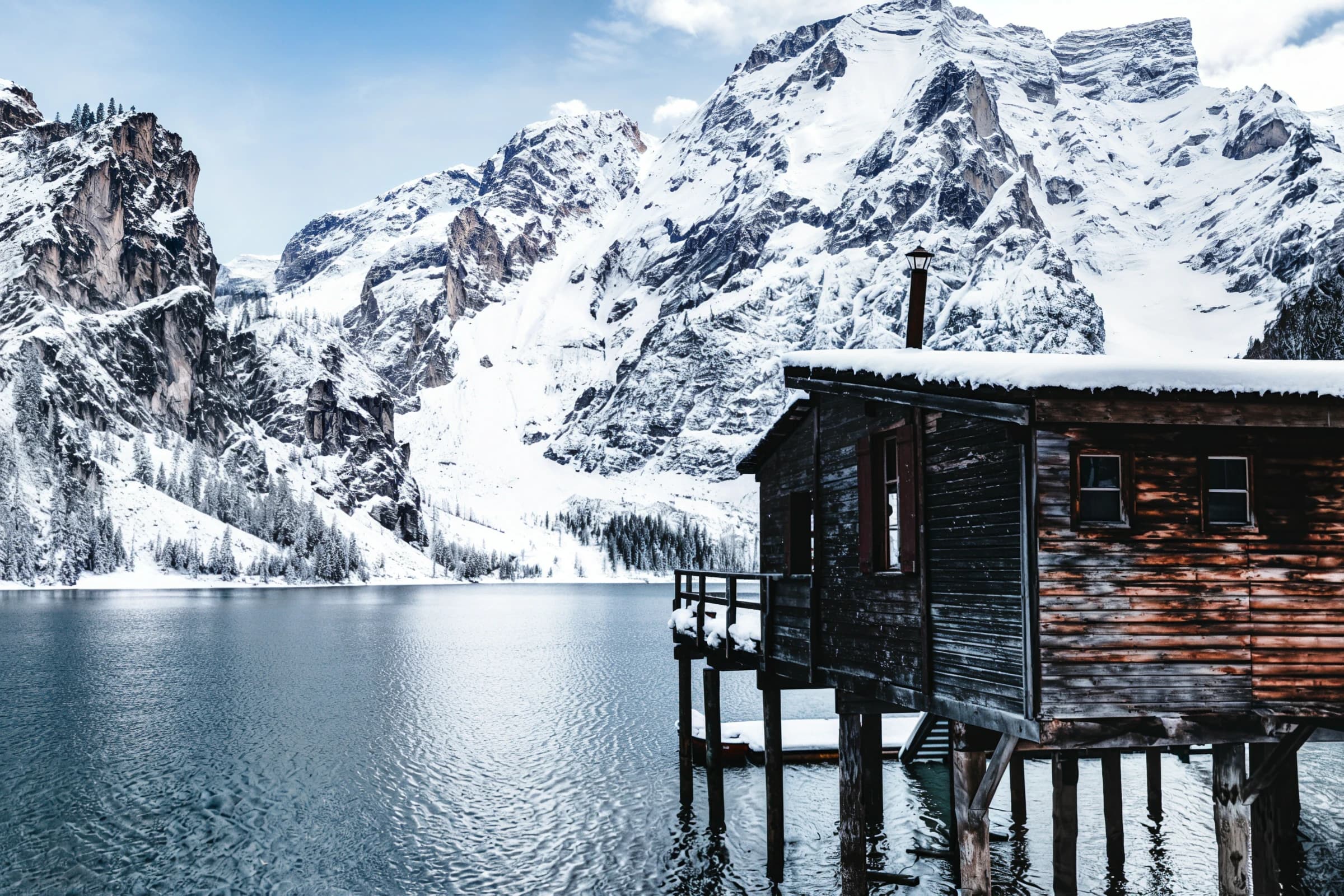
  • Cabin on a mountain lake, processed with Upscale 4×Cabin on a mountain lake
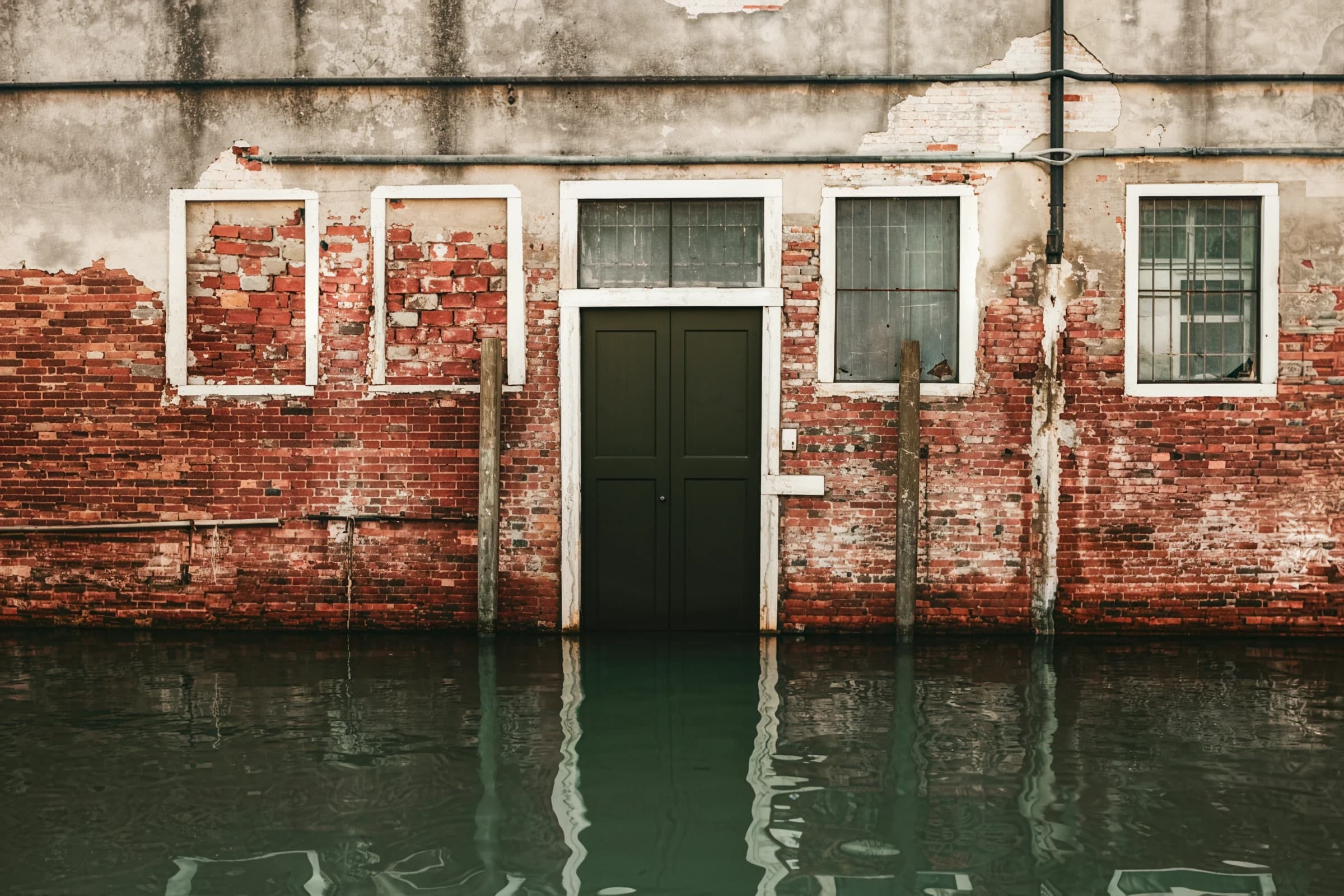
  • Flooded brick façade, processed with Upscale 4×Flooded brick façade

Specs

Scale
4× width and height (16× pixels)
Example
1000×750 → 4000×3000
Input
Up to 5 MP
Maximum output
80 MP
Cost
1 credit per photo
Formats
JPG, PNG, WebP
Free plan
3 credits a day, no sign-up
Privacy
Deleted within 24 hours

What it won't do

  • Inputs above 5 MP are refused before upload; use a smaller copy or crop the photo first.
  • Very tiny faces cannot be restored to a recognisable likeness, and none is invented.
  • Small text stays as soft as in the original; letters are not guessed.
  • Heavy motion blur stays blurred.
  • Strong noise and compression are enlarged with the image unless you run Enhance first.
  • Not for evidence or identification: the added texture is plausible, not recorded.

Guides for specific jobs

Questions

4× or 8×: which do I need?

Use 4× for most web images and prints up to roughly A3. Use 8× when the original is a thumbnail or you need a poster from a small landscape photo. 4× uses 1 credit per photo, 8× uses 2.

How large can my image be?

Up to 5 MP, for example 2560 × 1920, because the result is limited to 80 MP. Free uploads are also limited to 3 MB, paid uploads to 20 MB.

Is the result the same photo?

Yes. The composition, colours and subjects stay as they are. The model adds the fine detail a normal resize cannot, following the shapes in your photo.

How do I increase the resolution of an image without losing quality?

Start from the best copy you have, clean heavy noise or compression first with Enhance, then upscale with an AI model instead of a plain resize. No method recovers detail that is completely missing, but AI upscaling keeps edges and texture where a resize turns them soft.

Can I upscale an image for printing at 300 DPI?

Yes. Divide the pixel size of the result by 300 to get the print size in inches. Changing the DPI number in the file's settings alone adds no pixels.

Will it make small text readable?

No. Text in the photo stays as soft as in the original; the model does not guess letters. Small, dense print can still come out wrong, so check it at 100 %.

Does it work on illustrations and anime?

It was built and tested on photographs. On drawings it usually keeps lines clean, but check flat colour areas and screentone at 100 % before you use the result.

Is it free?

The free plan gives you 3 credits a day with no sign-up and no card. Enhance and Upscale 4× use 1 credit per photo, Upscale 8× uses 2. Free results carry a watermark. Paid plans remove the watermark, accept larger files and process up to 50 images at once.

What happens to my images?

Uploads and results are deleted automatically within 24 hours. They are never sold and never used to train AI.

Processing photos in bulk or inside your own app? Use the image enhancement and upscaling API

Other models