
Skip to content

Night and low-light phone photos

Fix grainy night photos

Reduce visible grain in a night photo with Enhance, which cleans noise and compression while keeping the image size. If the subject moved or the phone smeared fine detail away, the repair cannot establish what was there. For your next shot, add light and hold the phone steady.

  • 3 free credits a day
  • No sign-up
  • Keeps the night look
  • Same size out
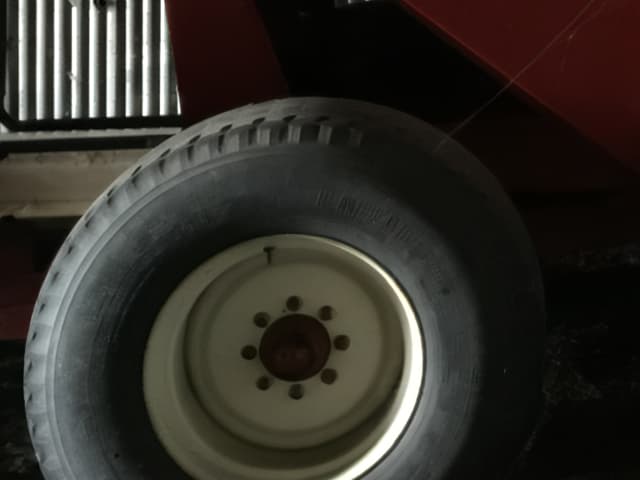
Tyre and dark floor in an iPad ISO 800 photo: Enhanced
Tyre and dark floor in an iPad ISO 800 photo: Phone at night
Phone at nightEnhanced

Enhance · 1× · real low-light capture

Real iPad ISO 800 photo taken inside a dark shed, not a simulated night scene. Both sides show the same 640 × 480 pixels: input on the left, saved Enhance GPU output on the right. Inspect the tyre, shadow and metal edges.

Tested settings and honest limits

Our low-light check used Enhance at 1×: the 2048 × 1536 input stayed 2048 × 1536. This indoor shed is a real dim-light example; it is not a test of a moving subject outdoors or of a phone’s Night mode. No brightness edit or extra denoising was applied for this comparison.

The dark areas lose grain while the broad tyre and equipment shapes remain. That is the useful distinction: reducing noise can make a shot easier to view, but it does not prove that fine rubber texture was recovered. Keep the original if that detail matters.

The deployment checks also found a precision-sensitive text-protection difference around roof highlights elsewhere in this photo. A good-looking shadow crop does not clear that failure. Check lights and high-contrast edges in your own Enhance result; heavy motion blur, clipped highlights and physical damage remain beyond this tool.

Read how we test and where our evidence stops. These are saved engine outputs, cropped for the web without retouching.

Fix your night photo

Drop the photo here and choose Enhance. Each photo uses 1 credit. Free: 3 credits a day without an account, uploads up to 3 MB and 8 MP, with a small watermark. Paid plans remove the watermark and take photos up to 20 MB and 30 MP, enough for most full-resolution phone photos.

Why night photos come out grainy

Grain is not a fault in your phone. It is what a picture looks like when too little light reaches the sensor, and every camera has it. Phones just run into it sooner.

Light arrives as a random trickle. In daylight each pixel collects plenty of light, and the random variation between neighbouring pixels is tiny compared with the signal. At night each pixel collects far less, so the same randomness becomes a large share of what it records and shows up as speckles. This is called shot noise, and no amount of engineering removes it at capture: the only real cure is more light.

Phone sensors and pixels are small. A phone sensor is a fraction of the size of a camera sensor, and each pixel is tiny, so each one catches less light in the same scene. That is why the same street at night looks clean from a full-frame camera and grainy from a phone. Our guide on why phone photos look bad up close covers this in more depth.

The phone turns up the gain. To make a dark scene look bright, the camera raises its ISO, which amplifies the signal and the noise together. It also keeps the shutter short so that your hand and the people in the scene do not blur, which means even less light.

Colour suffers first. In the shadows the camera has very little colour information, so noise shows up as red, green and purple blotches, especially in dark skies, walls and clothing.

Why they also look smeared or painted

Phones know their night photos are noisy, so they clean them before you ever see the picture. That noise reduction has to guess what is noise and what is detail, and in the dark it guesses conservatively: it flattens fine texture together with the grain. The result is the familiar watercolour look, where foliage turns into green paste, faces look waxy, and brick walls lose their joints.

Night mode helps by taking several frames and combining them. Apple says Night mode turns on automatically on iPhone 11 and later when the camera detects low light, shows a yellow icon, and can take from a moment to several seconds. Samsung's Night mode, found under More in the Camera app, also combines multiple frames into one photo. Merging frames averages out much of the randomness, which is why night mode photos are cleaner. But anything that moves during those seconds, including your hands, can blur or ghost, and the phone still applies its own smoothing on top.

Then the photo is often shared. A chat app shrinks it and re-saves it as a JPEG, which adds blocks in the dark areas and makes colour blotches bigger. Most grainy night photos people want to fix carry all three layers: sensor grain, phone smoothing and compression.

Grain, blur or smear? How to tell what you have

Open the photo on a computer or zoom to 100% on your phone and look at a dark area and an edge:

  • Grain: fine speckles, often coloured, strongest in the shadows. Enhance removes this well.
  • Smear: flat, painted patches where texture should be (leaves, hair, fabric). Enhance restores natural-looking texture in these areas.
  • Compression blocks: square patterns and steps in dark skies. Enhance removes these too.
  • Motion blur: every light point is stretched into a short line in the same direction, edges are doubled. This came from movement during the exposure and is mostly not recoverable.
  • Focus blur: the whole subject is soft and round lights become discs. Mild softness improves; real misfocus does not.

How to take cleaner night photos on your phone

A few habits make more difference than any setting:

  • Find the light. Stand where streetlights, shop windows or a lit facade light your subject. Every extra bit of light lowers the noise more than any processing can.
  • Hold still and let night mode finish. Brace your elbows against your body or lean on a wall, and keep the phone still until the capture is done. On a tripod or a solid surface, the phone can use longer exposures.
  • Use the main camera. The main (1×) camera usually has the largest sensor and brightest lens on the phone. Zooming in at night often gives you a darker lens or a digital crop, and more grain.
  • Don't brighten the shadows in the camera. Tapping on a dark area makes the phone push the whole picture brighter and noisier. Tap on the lit subject instead and, if needed, lower the exposure slightly; a darker night photo looks more natural and cleaner.
  • Wipe the lens. A fingerprint on the lens spreads streetlights into haze and halos that look like poor quality.
  • Send it in HD or as a file. If you share the photo, use the HD option or send it as a document so the chat app does not add compression on top. See how to fix WhatsApp photo quality.

How to fix a grainy night photo you already took

  1. Use the largest copy you have. The original from your phone's gallery is better than a copy from a chat or social media.
  2. Upload it to Enhance. It works on the whole frame and keeps the exact width and height. You do not need to choose a strength or mask anything.
  3. Compare at 100%. Look at the darkest areas and at edges such as window frames and railings, then download.
  4. Optional: make it bigger. For a print, run the cleaned photo through Upscale 4× and check the size with the print calculator. Clean first, then upscale, so the grain is not enlarged too.

Enhance keeps the light of the scene. A night photo stays a night photo: lamps keep their glow and the sky stays dark. If you want the photo brighter, adjust exposure in your photo editor after Enhance, which brightens a clean picture instead of a noisy one.

Concerts, parties, city lights: what to expect

Night photos fail in different ways depending on the scene. Knowing which one you have tells you how much a repair can do.

  • City streets and buildings at night. Mostly grain and colour blotches in the sky and shadows, plus smeared brickwork and foliage. This is where Enhance helps most: lamps, windows and railings come back clean.
  • Indoor parties and restaurants. Warm, dim light, high ISO and people moving. Grain and smeared skin and hair clean up well; a face that moved during the shot stays blurred.
  • Concerts and stage shows. Bright stage lights against a dark crowd, often shot zoomed in. The grain in the dark areas cleans up; motion blur on the performers and blown-out spotlights do not change.
  • Pets and kids indoors in the evening. They rarely hold still, so expect a mix of grain and motion blur. The grain goes; the blur mostly stays.
  • Night sky and fireworks. Very dark scenes with tiny points of light. Enhance cleans the noise in the sky, but it does not add stars, and long-exposure light trails stay as they are.

Only a little grain? What to try

Not every night photo is a disaster. Many evening shots from a recent phone are mostly fine, with just a light layer of grain in the shadows. If your photo is already clean when you zoom in, Enhance leaves it essentially as it is, so you do not lose anything by trying it, but you also will not see much change.

If the photo is in good shape apart from a light layer of grain, Enhance is still the tool to try: it removes the grain and colour speckle at the same size, for 1 credit. If the photo is also too small for what you need, enlarge the enhanced file with Upscale 4× afterwards.

Why not just use a noise reduction slider?

Classic noise reduction, the kind in phone editors and most desktop tools, blurs neighbouring pixels together. It cannot tell grain from fine detail, so the more grain you remove, the more texture goes with it, and you end up with the same painted look your phone already created.

Enhance is a neural network trained on pairs of clean photos and copies degraded the way phones and chat apps really degrade them, so it has learned what real texture looks like under the grain. It removes noise and compression damage, and adds natural fine texture where the photo had lost it. That is why the knitwear, yarn and leaves in our gallery keep their structure after the grain is gone. It was designed to repair the photo, not to restyle it: colours and composition stay as they were.

The comparison on this page is a real low-light iPad photo inside a shed, processed by our production engines. There is no matching clean ground truth. It shows noise cleanup in this scene, not proof of recovered texture or a test of every phone’s night mode. The gallery also contains clearly labelled simulated examples.

What Enhance cannot fix at night

  • Motion blur from a long exposure: light trails from a shaking hand stay blurred.
  • Areas that are pure black or pure white: there is no detail in the file to recover.
  • Tiny faces in the dark: they are cleaned, not reconstructed into a recognisable likeness.
  • Signs and lettering that are unreadable stay unreadable. Text is protected, not reconstructed, and very small print can occasionally be missed, so check it at 100%.
  • The fine texture it adds in smeared areas is plausible, not a record of the scene, so it is not for forensic use.
  • It does not brighten the photo or turn night into day; adjust exposure afterwards if you want.
  • Free results are watermarked; paid plans are not.

Questions

Why are my night photos so grainy?

In the dark each pixel of a small phone sensor collects very little light, so the camera amplifies the signal (high ISO) and the random variation in light becomes visible as grain. Phones then smooth the grain, which also removes texture.

Why are my iPhone night photos grainy even with Night mode?

Night mode combines several frames to reduce noise, but in very dark scenes there is still too little light, and anything that moves during the capture can blur. The phone then applies its own smoothing. Hold still, find more light, use the main camera, and clean the remaining grain with Enhance.

Can you remove grain from a photo without losing detail?

Noise reduction can also smooth fine detail. Enhance aims to keep broad edges and can add plausible fine texture, but our low-light crop has no clean ground truth to establish whether that texture is original. Compare the complete result, especially faces, text and lights.

Why do my photos look fine on the phone but grainy on a computer?

A phone screen shows the whole photo in a small space, which hides grain. On a computer, a TV or a print you see it much larger, so the speckles and smeared texture become obvious. Zoom to 100% on the phone to see what the file really contains.

Is the example a real night-mode test?

It is a real low-light iPad capture inside a shed. It demonstrates noise cleanup in that scene, not performance on moving night subjects or every phone’s Night mode.